On-demand rides are just a tap away in the CAMBUS Now mobile app.
Book rides at your convenience with the CAMBUS On-Demand Shuttle or Bionic Bus.
Download CAMBUS Now
Click on the Apple Store or Google Play icon to download.


CAMBUS Now app user guide
App setup
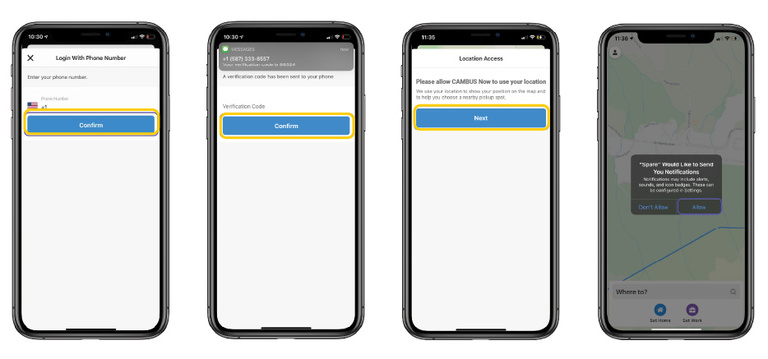
When you first open the app, please click on “Register”.
Enter the mobile number of the phone you are using and enter in the verification code you are texted.
Enable location services to use the app - please tap "Allow While Using App" when prompted to enable.
How to book a trip
Select pickup and dropoff location
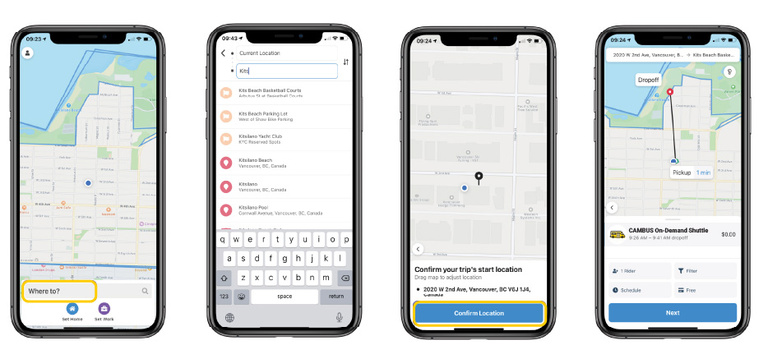
- Tap "Where to?"
- Enter your pickup and dropoff locations by tapping the corresponding fields and typing in your desired destination and selecting a stop (orange flag) or point of interest (red pin) from the list.
- Confirm your trip’s start location by moving the pin to your desired pickup spot.
- If trips are available at this time, the estimated dropoff time will display.
Schedule a ride
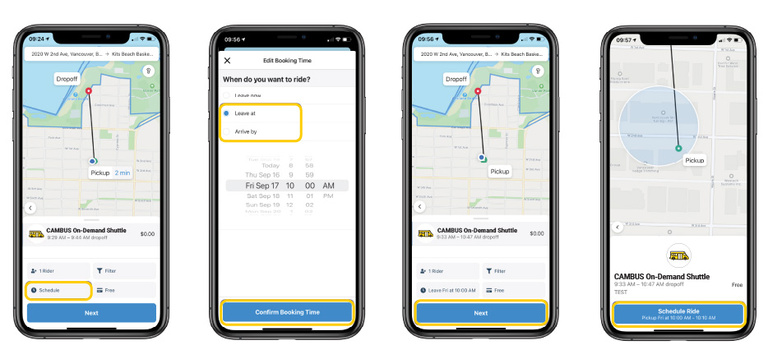
- To schedule the ride for a future time, tap “Schedule". You can select a “Leave at” or “Arrive by” time for the same day, or a date and time in the future. Once you’ve selected your date and time, tap “Confirm Booking Time”.
- The trip details will show above, including the estimated dropoff window. Tap “Next” to confirm.
- Tap “Schedule Ride” to schedule your ride.
Customize your trip
When booking a trip, riders have options for adding additional passengers and sorting services by accessibility.
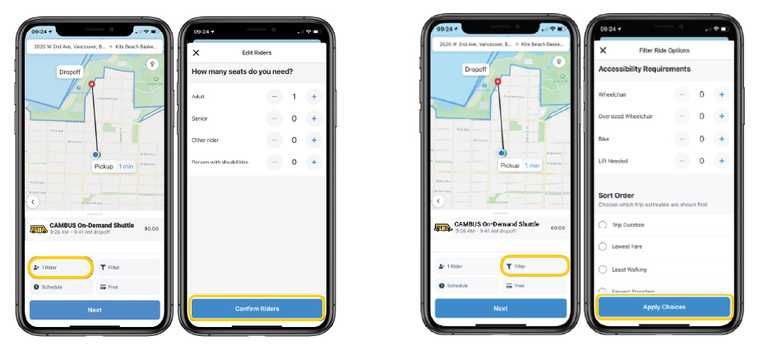
To add additional riders, tap “1 Rider”. The next menu will allow you to add additional riders by tapping the “+” and “-” fields. Tap “Confirm Riders” when you’ve added the desired number of additional riders.
To add accessibility requirements and sort available services by criteria, select “Filter”. When you’ve added any accessibility requirements and filters, tap “Apply Choices”.
Modify a trip
From the map, you can tap the calendar icon in the top right corner to view your scheduled trips.
Tap into the scheduled trip to view more details or cancel your ride.

Boarding your ride
When it’s time for your ride, you can tap the “Driver is arriving” banner
Tap into the banner to see the vehicle’s location on the map so you can meet your driver. You can swipe up on “Driver is Arriving” for more details.
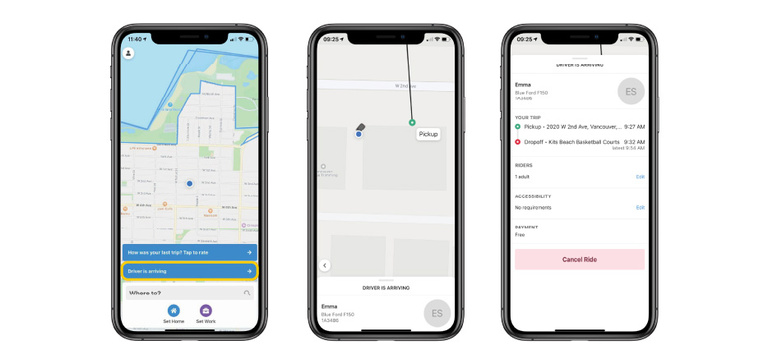
Once you’ve met your driver, you can see more details about your ride, such as your estimated drop off time.
When you leave a review, you’ll have the option to add more feedback. Make sure you tap “Send Feedback” to send your review to the organization!

User profile features
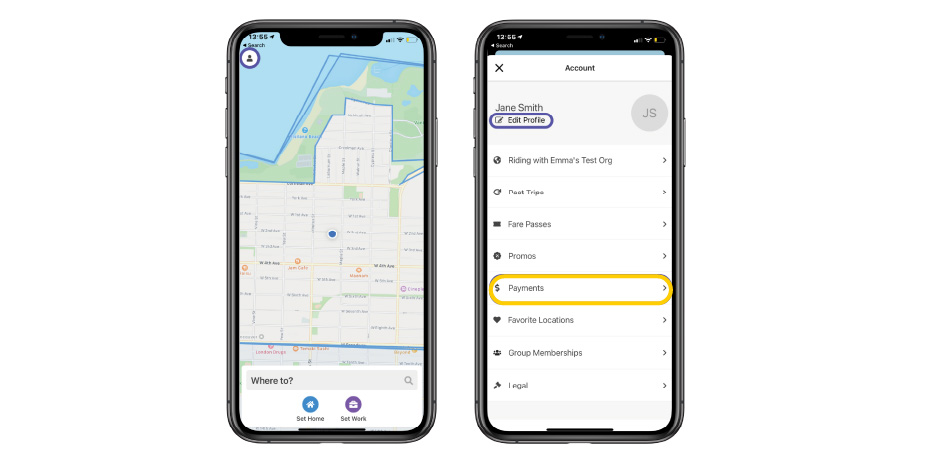
Your profile is available in the top left-hand corner of the map screen. You can tap into it for more options.
You can edit your profile by tapping into “Edit Profile”.
When you scroll to the bottom of the page, you’ll note the option to sign out. Don’t worry about a password - we’ll send you another verification code by text when you log back in!